What people on the call actually see
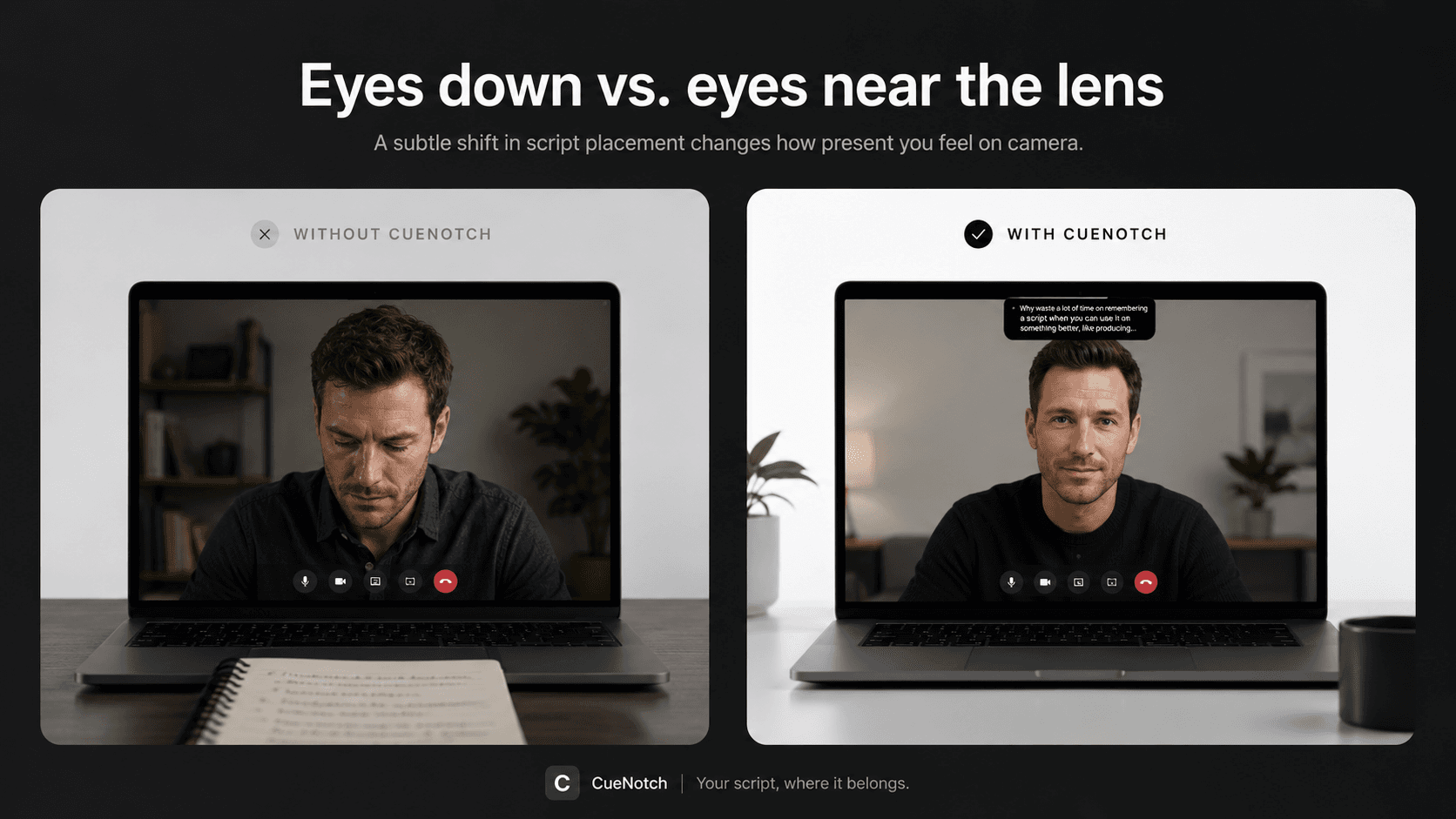
Video calls split two things that used to be one. In a room, looking at a person is looking at them. On Zoom, looking at their face is looking at a rectangle south of the camera, and looking at your notes is looking further south still.
That is why “I was just checking my bullets” reads as distracted, unprepared or shifty, even when you are none of those. You do not need a lecture on why eye contact matters. You need the notes somewhere that reading them does not produce the glance.
The failed hacks, which all make you look down
Shrink the Zoom window and park it under the camera
Interview blogs love this. You make the window tiny, shove it up, and look near the lens. It helps with their face. It does nothing for a speaker-notes doc, a run-of-show or a Word script, which still live somewhere else. You have solved half the geometry.
Sticky note on the bezel
A star, a name, a “LOOK HERE.” Useful as a reminder, useless as a talk track. The second you need more than four words you are back in a window below the camera.
Apple Notes, Stickies or TextEdit floated on the desktop
Works until you share the screen. A full-desktop share broadcasts the notes. A window share fails the moment you leave that window. And the notes still are not at the lens. They are a pane you are darting to.
Second monitor for notes
Presenter View on the laptop, tiles on the external, or the reverse. Either way your eyes play tennis. Dual-monitor is the most expensive way to still look away. If the share is leaking the notes pane, that is a different failure: speaker notes while screen sharing on Zoom.
Phone under the camera, paper on the desk
The same downward glance, plus a glowing rectangle. Fine for a grocery list. Not fine for a number you cannot miss.
Mac Presenter View and portion-of-screen
On a Mac, Presenter View wants the whole display. A windowed slideshow drops the notes. Portion-of-screen hides them from Zoom and parks them in the leftover strip of the laptop, still not the camera. There is a walkthrough of those failures in keep speaker notes while sharing the deck.
Memorizing
You can memorize a standup. You cannot reliably memorize a 12-slide review with figures you are on the hook for, and the pause while you search your own memory looks like the same glance. If you have to learn it anyway, memorize the ideas before the words.
If the hack still puts the words below the lens, it is not an eye-contact hack.
Every hack above moves your eyes off the lens. The fix is not a better glance. It is putting the words where you are already looking.
Reading is eye contact when the notes sit next to the lensPut the notes next to the camera
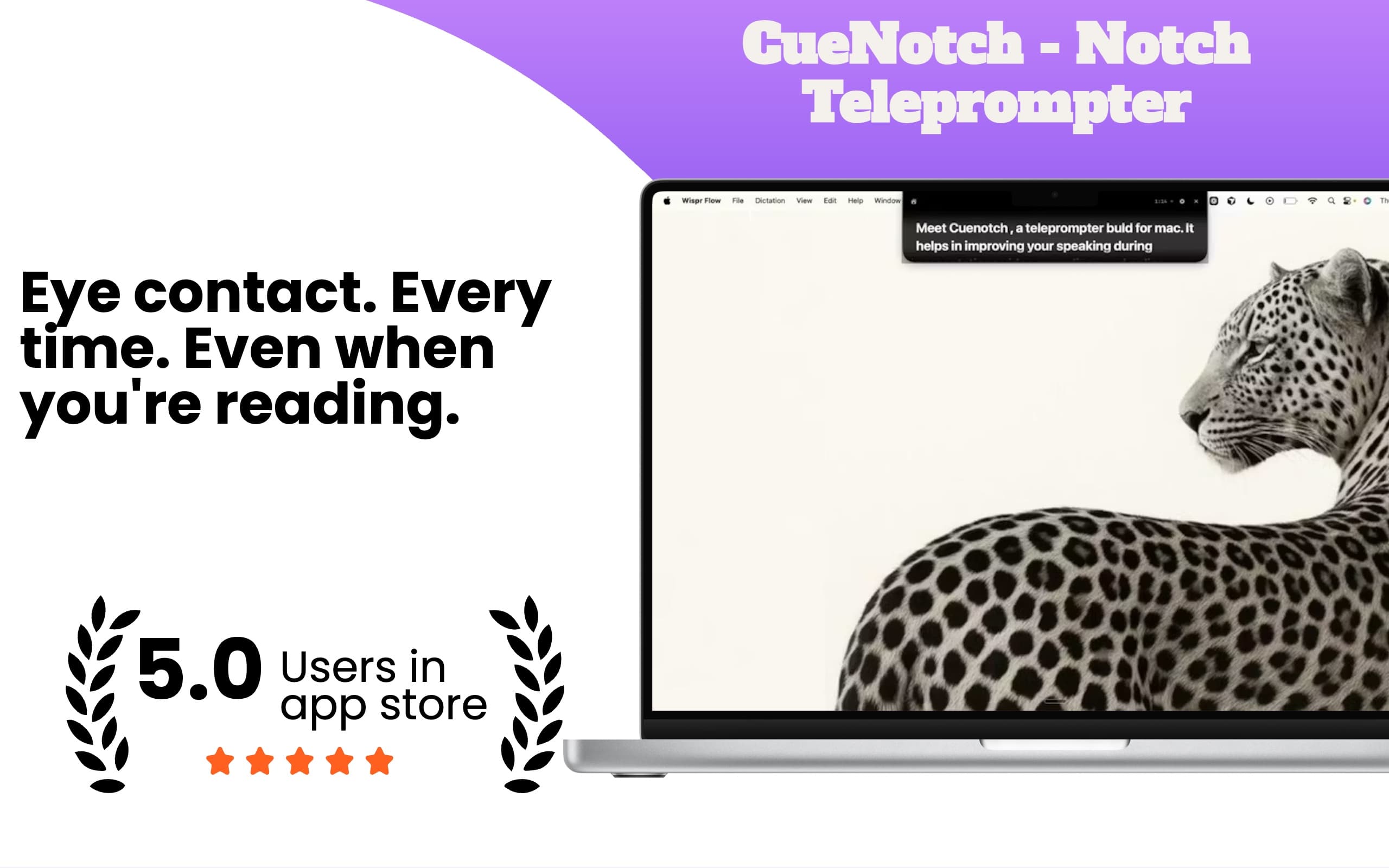
CueNotch is a native Mac app for macOS 14 and later. It holds your talk track in a compact overlay beside the camera: in the notch if your Mac has one, top-center next to the lens if it does not.
That is the whole geometry trick. The text is millimetres from the FaceTime camera instead of in a window in the middle of the display. You read. They see you looking at them.
Voice-synced scrolling is on-device. Talk and the bullets follow. Pause and they wait, including when the other person is talking. You are not chasing a ticker and not clicking a notes pane. The hotkey is Cmd+Shift+Space.
Set it up for the next Zoom
Get CueNotch
From the Mac App Store. The free tier is 3 activations a day and 100-word scripts.
Paste what you were going to look down at
Bullets, not a speech.
Turn on Ghost Mode if you will share anything
Do this before the call, not during it.
Join and press Cmd+Shift+Space
Confirm the overlay is next to the camera, not in a window on the desk.
Preview the share, then talk
Voice-sync follows you and waits when they speak.
That is the whole setup. No second monitor and no green box. The product page for this workflow is CueNotch for Zoom.
How to keep notes while presenting without looking down
This is the same job with a deck in the share.
You need three things at once: slides for them, notes for you, eyes on the camera. PowerPoint and Keynote will not give you all three on one Mac screen. Share Presenter View and they see the notes. Share only the slideshow and you lose the notes. Share a portion of the screen and you spend the hour babysitting a green box while your eyes bounce between the leftover strip and the lens.
Do this instead:
- Paste the speaker notes, or a five-bullet outline per slide, into CueNotch. Do not paste the slide; they can read the slide.
- Turn on Ghost Mode so the overlay is hidden from Zoom, and from Meet, Teams, Loom, OBS, screenshots and recordings. Share the deck or the whole desktop, and preview the share once. Details in Ghost Mode.
- Press
Cmd+Shift+Space. The notes sit beside the camera. Advance the deck as you always do and read the next line without dropping your gaze to a notes pane.
That is notes while presenting without looking down. Not a smaller Zoom window, not a second monitor. Notes at the lens, share stays clean. If your immediate problem is the leak (a Word script plus PowerPoint, with only slides going to participants), start with speaker notes while screen sharing on Zoom.
Do not sound like you are reciting
Notes next to the camera still sound stiff if you wrote a speech.
- Write bullets you would actually say, not paragraphs.
- Take one practice pass so the order is not a surprise. That is familiarity, not memorizing.
- Let voice-sync wait. A pause is better than rushing to keep up with a scroll.
- Glance away on purpose sometimes. An unblinking lock on the lens is its own tell. You are allowed to think.
The overlay is a safety net, not a script to perform.
Frequently asked questions
- How do I look at the camera on Zoom while reading notes?
- Put the notes next to the lens, not in a window under the Zoom tiles. CueNotch holds them beside the camera, in the notch or top-center if there is no notch, so reading and looking at the camera become the same glance.
- How do I keep notes while presenting without looking down?
- Do not use Presenter View as the notes surface. Paste the talk track into CueNotch, turn Ghost Mode on, and share the slides. The notes stay beside the camera and out of the share.
- Will they know I am reading?
- People notice the glance down, not the reading. Use short bullets, natural pauses, and voice-sync that waits. A paragraph next to the camera still sounds like a paragraph.
- Can they see the notes if I share?
- Not with Ghost Mode on. It excludes the CueNotch overlay from macOS screen capture, so Zoom, Meet, Teams, Loom, OBS and recordings do not include it. Preview the share anyway.
Paste the notes. Look at the camera.
Notes beside the lens, hidden from the share, patient when the other person talks.
Try CueNotch free- macOS 14+
- Free: 3 activations a day, 100-word scripts
- $29.99 lifetime or $7.99 per week
- 3-day Pro trial does not auto-renew