How to Use a Teleprompter for Presentations on Zoom, Teams & Meet
Presenting on a video call creates a unique problem: you need to share your screen (showing slides), maintain eye contact with the camera, and remember what to say — all at the same time. Speaker notes in PowerPoint or Keynote don't help when you're screen sharing. CueNotch does.
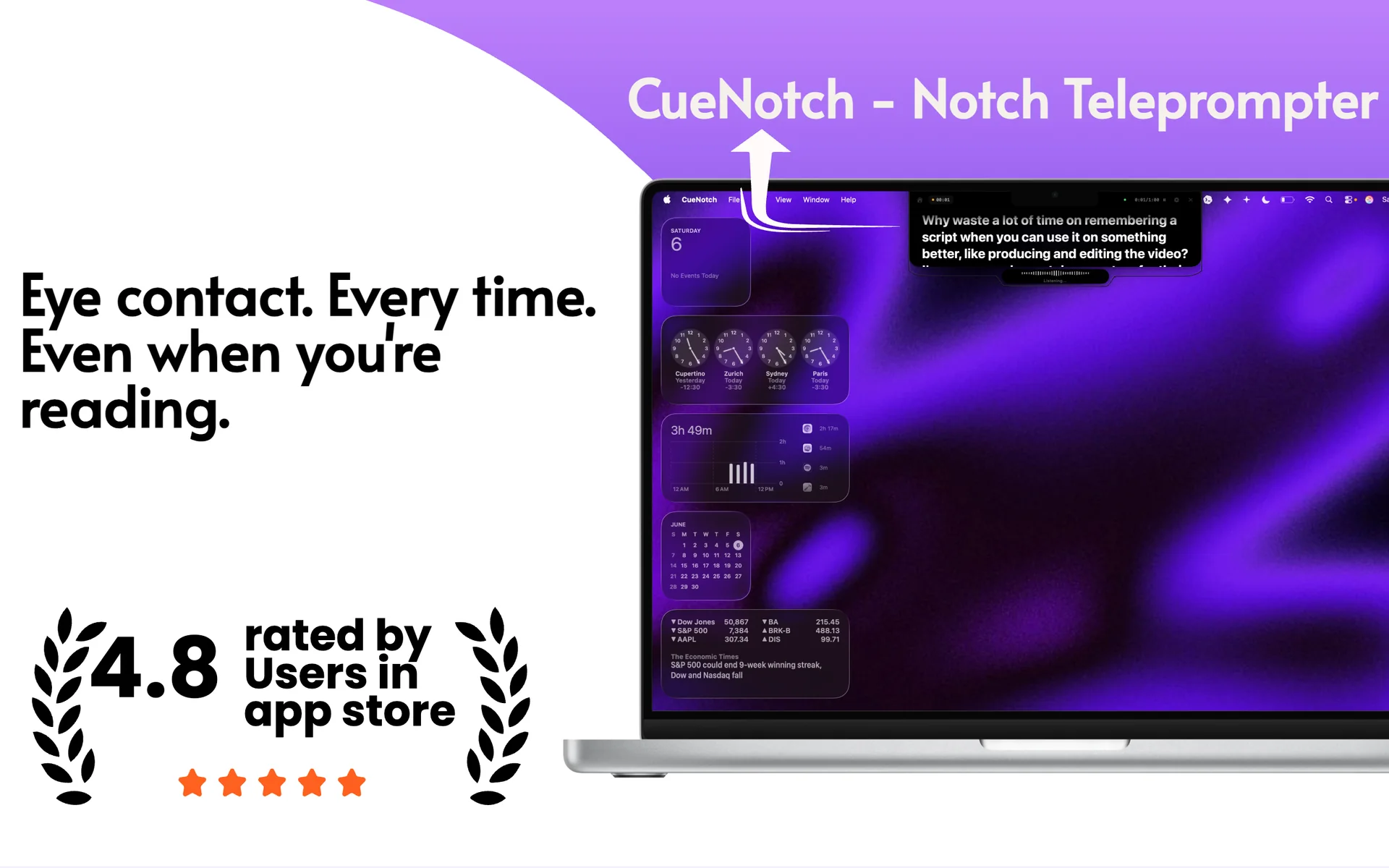
Looking for the product page rather than the setup guide? Explore CueNotch for presentations on Mac, including camera-level notes, voice sync, and the private screen-sharing workflow.
The Speaker Notes Problem on Video Calls
In a physical meeting room, you can glance at your laptop for speaker notes while facing the audience. On a video call, this breaks down:
- Presenter View exposes your notes. PowerPoint and Keynote's Presenter View shows your notes on your screen while the audience sees only the slides. But when you share your screen on Zoom, the audience can see everything — including your notes. You have to choose: share the presentation window (losing your notes) or use Presenter View and risk the audience seeing your script.
- Dual monitors don't solve it. Even with a second monitor, your notes are on one screen and the camera is on another. Looking at your notes means looking away from the camera, which breaks eye contact.
- Memorizing is unreliable. For a 30-minute presentation with data points, quotes, and specific messaging, memorizing everything isn't realistic. And the stress of trying to remember kills your natural delivery.
How CueNotch Solves This
CueNotch puts your speaker notes in the MacBook notch area, right next to the camera. This gives you three things simultaneously:
- Your speaker notes are always visible. They sit in the notch, above your slides, above your Zoom window, above everything else on screen.
- Reading them looks like eye contact. Because the notes are within millimeters of the camera lens, your audience sees you looking directly at them.
- They're invisible when screen sharing. Ghost Mode excludes CueNotch from screen capture. Share your slides, your desktop, your browser — the notes stay private.
Setting Up CueNotch for a Presentation
- Copy your speaker notes from PowerPoint, Keynote, or Google Slides into CueNotch. You can paste the full set of notes or just the key talking points for each slide.
- Optionally, run Magic Polish. If your notes are in bullet-point form, CueNotch's AI Magic Polish can convert them into natural spoken language.
- Enable Ghost Mode before joining the call. This ensures the teleprompter won't appear in your screen share.
- Activate with Cmd+Shift+Space. Your notes appear in the notch.
- Present as usual. Share your slides on Zoom/Teams/Meet. Voice-synced scrolling advances your notes as you speak. When you pause for questions, the notes pause too.
Common Presentation Scenarios
Client Presentations
When presenting to clients, you need to sound confident and knowledgeable. CueNotch lets you reference specific data points, deliverable timelines, and contractual details without fumbling through notes. Ghost Mode means you can walk through a project plan or proposal on-screen while your talking points stay hidden.
All-Hands and Company Updates
Leadership presentations at company all-hands meetings require hitting specific messaging points — quarterly numbers, strategic priorities, and carefully worded updates. CueNotch ensures you deliver the exact message you prepared without the stiffness of reading from a script visible to your audience.
Investor Pitches
Investor pitches are high-stakes presentations where forgetting a key metric or stumbling on your market size figures can undermine credibility. With CueNotch, your ARR, growth rate, TAM, and customer count are all right next to the camera. You deliver the numbers with confidence while maintaining the kind of direct eye contact that builds investor trust.
Webinars and Virtual Events
Webinar presenters often record to a camera for 30-60 minutes. Without a teleprompter, this means either memorizing an hour of content or reading from a screen in a way that looks obvious to attendees. CueNotch keeps your outline flowing with voice-synced scrolling, so you can deliver a polished webinar without the robotic energy of reading from notes.
CueNotch vs PowerPoint Presenter View
| Feature | CueNotch | Presenter View |
|---|---|---|
| Notes visible during screen share | ✓ (Ghost Mode) | ✗ (exposed or unavailable) |
| Maintains eye contact | ✓ (notch display) | ✗ (notes below camera) |
| Voice-synced scrolling | ✓ | ✗ |
| Works with any app | ✓ | PowerPoint/Keynote only |
| AI script optimization | ✓ | ✗ |
| Requires second monitor | No | Recommended |
Tips for Better Presentations With CueNotch
- Don't duplicate your slides. Your teleprompter notes should complement your slides, not repeat them. The audience can read your slides — your notes should contain what you want to say about each slide.
- Add transition cues. Include brief notes like "[NEXT SLIDE]" or "[PAUSE FOR QUESTIONS]" in your script so you remember to advance slides or check in with the audience.
- Keep it concise. For presentations, use key phrases rather than full paragraphs. You know your material — the teleprompter is there to keep you on track, not to replace your knowledge.
- Practice the first 60 seconds. Your opening sets the tone. Even with a teleprompter, rehearsing your opening ensures you start strong and settle into a natural rhythm.
Try It on Your Next Presentation
CueNotch's free tier gives you 3 activations per day — use one on your next presentation and see the difference. CueNotch Pro is $7.99/week or $29.99 lifetime access in the U.S. App Store with Ghost Mode, unlimited scripts, voice-synced scrolling, and AI features. Local App Store pricing may vary. For more on eye contact during video calls, see our guide on perfect eye contact on Zoom. For a broader look at all available options, check out our 2026 roundup of notch teleprompter apps.
macOS 14+ · Ghost Mode for screen sharing · $7.99/week or $29.99 lifetime access