Ghost Mode: How to Use a Teleprompter That's Invisible During Screen Sharing
You're presenting on a Zoom call. Your talking points are scrolling on screen, keeping you sharp and on message. Then someone asks you to share your screen. In an instant, your entire script is visible to every person on the call. This article explains why that happens, how Ghost Mode solves it at the operating system level, and how to verify it yourself in under two minutes.
By Siddharth Radhakrishnan, CueNotch co-founder / Updated July 16, 2026
Short answer
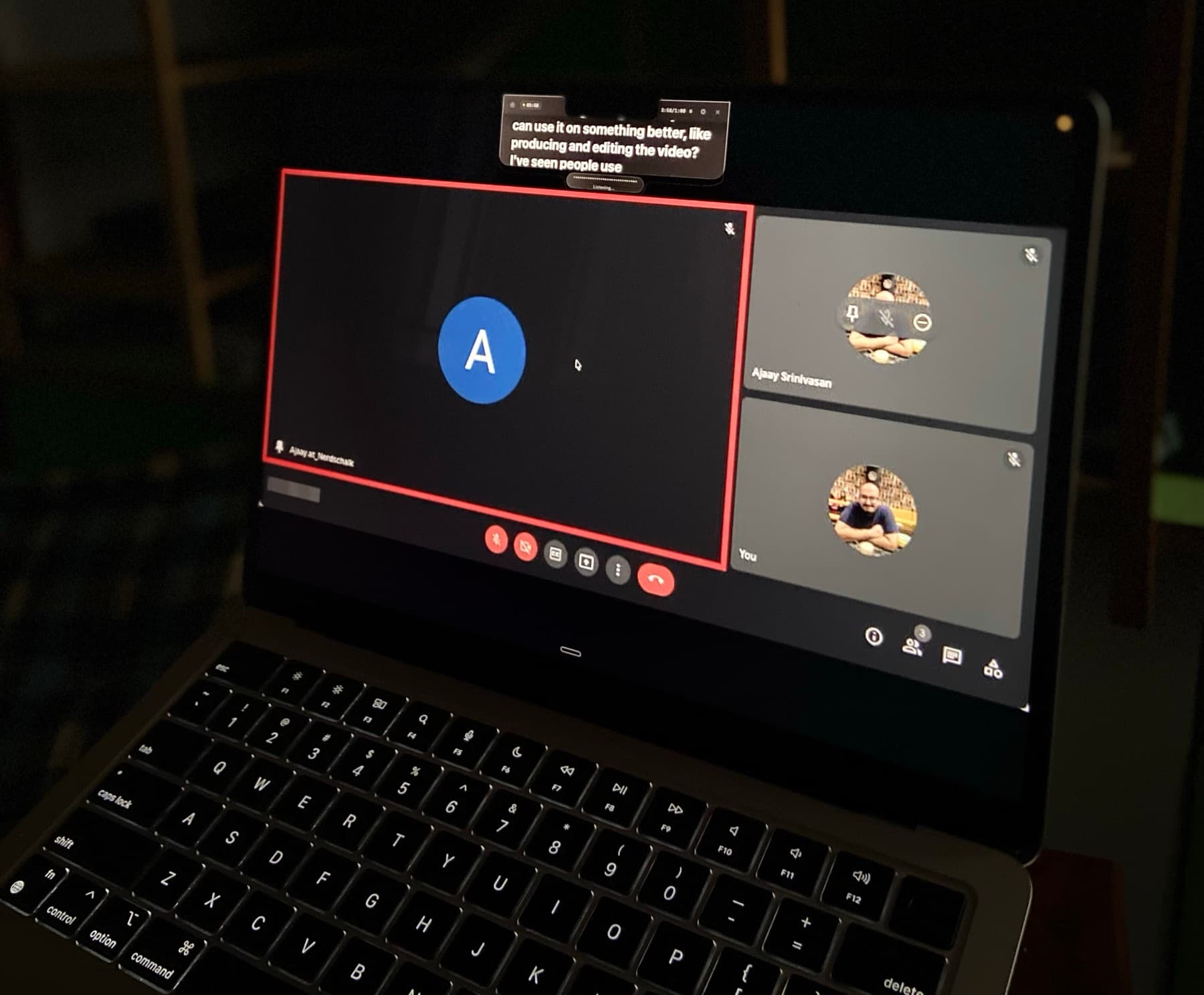
The safest way to use an invisible teleprompter during screen sharing is to use a Mac app that excludes the teleprompter window from screen capture. CueNotch Ghost Mode does that, so you can read your script while your shared Zoom, Meet, Teams, Loom, or OBS view stays clean.
The Problem: Standard Overlays Can Appear in Screen Sharing
Picture this: you're halfway through a quarterly review on Zoom. Your teleprompter overlay is feeding you the exact revenue numbers and strategic points you need to hit. A stakeholder asks to see a dashboard, so you share your screen. Suddenly your entire script is right there for everyone to read. The call goes quiet for a beat too long.
Or maybe you're recording a Loom walkthrough for a client. You review the recording before sending it and notice a faint text overlay hovering over your demo the entire time. You have to re-record the whole thing.
This is a practical risk whenever a teleprompter is implemented as a normal visible window. Standard windows can enter the capture pipeline used by screen sharing and recording tools unless the app explicitly excludes its overlay.
Why Regular Teleprompters Fail at This
Most teleprompter apps on macOS create a standard NSWindow and position it on top of other content. Some make it semi-transparent. Some anchor it to the notch area. Some set it to float above all windows. None of that matters when it comes to screen capture.
The screen capture APIs used by Zoom, Google Meet, Microsoft Teams, Loom, OBS, and QuickTime don't care about transparency or window level. They walk the window list, find every visible window, and composite them into the captured frame. If your teleprompter window is visible, it's captured. Full stop.
Some apps attempt workarounds like moving the window off-screen when they detect a capture session, or reducing opacity to near zero. These are unreliable. The window is still technically part of the captured output, and artifacts, flickering, or partial text can appear. There is no positioning trick or transparency value that makes a standard window invisible to screen capture.
How Ghost Mode Actually Works
CueNotch takes a different approach. Instead of trying to hide a standard window from capture after the fact, Ghost Mode tells macOS to exclude the window from screen capture at the system level.
Since macOS 12 (Monterey), Apple provides a window property called sharingType. When a window's sharing type is set to .none, macOS removes it from the screen capture pipeline entirely. The window is still rendered on your physical display, but the operating system will not include it in any capture buffer. It's the same mechanism macOS uses for its own private UI elements — the ones you can see on screen but never appear in screenshots.
This is not a hack or a workaround. It's a first-party Apple API designed for exactly this purpose. The window is genuinely invisible to capture, not obscured, not moved, not made transparent. It simply does not exist in the captured output.
Apps Ghost Mode Is Invisible To
Because Ghost Mode operates at the macOS system level, it works with every application that uses the standard screen capture APIs. Here is a confirmed list:
- Zoom — invisible during full screen share and individual window share
- Google Meet — invisible across all sharing modes (tab, window, entire screen)
- Microsoft Teams — invisible during screen sharing and presentation mode
- Loom — does not appear in screen recordings, regardless of capture settings
- OBS Studio — excluded from both display capture and window capture sources
- QuickTime Player — does not appear in screen recordings
- Any app using macOS screen capture APIs — if it uses
CGWindowListCreateImage,ScreenCaptureKit, or the legacyAVCaptureScreenInput, Ghost Mode works
How to Test Ghost Mode Yourself
You don't have to take our word for it. You can verify Ghost Mode in under two minutes with nothing more than QuickTime Player, which is already on your Mac.
- Open CueNotch and paste any text into the script editor. A few sentences is enough.
- Activate the teleprompter with
Cmd+Shift+Space. You should see your script scrolling in the notch area of your MacBook. - Open QuickTime Player and go to File → New Screen Recording. Click Record.
- Wait a few seconds with CueNotch clearly visible on your screen, then stop the recording.
- Play back the recording. Your desktop, browser, and every other app will appear in the recording. CueNotch will not. The area where the teleprompter was is simply not there.
For a live test, start a Zoom call with a friend or colleague, share your screen, and ask them to confirm they cannot see the teleprompter. They won't.
Try it before a real call
Open CueNotch, turn on Ghost Mode, record your screen for a few seconds, and confirm your private script never appears.
Try CueNotch free — read your script near the cameraFree Alternatives and Their Tradeoffs
Free notch teleprompter apps for Mac vary in capture privacy, distribution, support, and preparation features. Check each app's current documentation and test it with your own sharing and recording workflow before relying on it in a live call.
- NotchPrompter — its official site describes it as free and open source and advertises voice activation and screen-capture privacy. Verify those features with the current release and your own conferencing or recording setup.
- NotchPrompt — review its current public documentation and test capture behavior before using it with private notes.
- Textream — compare its current public feature information and verify capture behavior in the sharing or recording tools you use.
Free open-source options can cover capable prompting workflows. The practical differences are capture behavior, distribution, support, and the preparation tools included with each app. CueNotch combines Ghost Mode with Magic Polish, Rehearsal Coach, AutoCaption, Memorize Mode, a script library, a free tier, and weekly or lifetime Pro access.
Ghost Mode Availability
Ghost Mode is included in CueNotch Pro, available as a $7.99 auto-renewing weekly subscription or $29.99 lifetime purchase in the U.S. App Store. Local App Store pricing may vary. Both plans unlock the same Pro features.
Every new user gets a 3-day free trial of all Pro features, including Ghost Mode. No credit card is required to start the trial. If you decide not to upgrade after the trial, CueNotch continues to work as a free teleprompter — you just lose access to Ghost Mode and other Pro features. For hands-free delivery, see how voice-synced teleprompter scrolling works. If you're evaluating your options, check out the best free teleprompter apps for Mac or our CueNotch vs Moody comparison.
Ghost Mode FAQ
Can I use a teleprompter while screen sharing?
Yes. CueNotch lets you use a Mac teleprompter while sharing your screen because Ghost Mode keeps the overlay out of the captured output.
Does it work for Zoom, Meet, Teams, Loom, and OBS?
Ghost Mode is built for those screen sharing and recording workflows. You can still see your script locally, but your audience sees the clean shared screen.
Is this just transparency?
No. A transparent overlay can still be captured. Ghost Mode uses macOS capture exclusion so the teleprompter is not part of the shared frame.
Related guides
macOS 14+ · Ghost Mode included in free trial · $7.99/week or $29.99 lifetime access