Why Meet calls need notes at the lens
Meet runs in a browser tab, and everything in it sits low on the screen: the faces, the chat, the captions. Notes in another tab or window are lower still, so every glance reads as looking away.
CueNotch puts them at the top of the screen instead:
- Beside the camera: in the notch on a MacBook that has one, or as a small bar at the top centre on a Mac that does not.
- Out of the presentation: with Ghost Mode on, the overlay is excluded from screen capture, so presenting your screen does not show it.
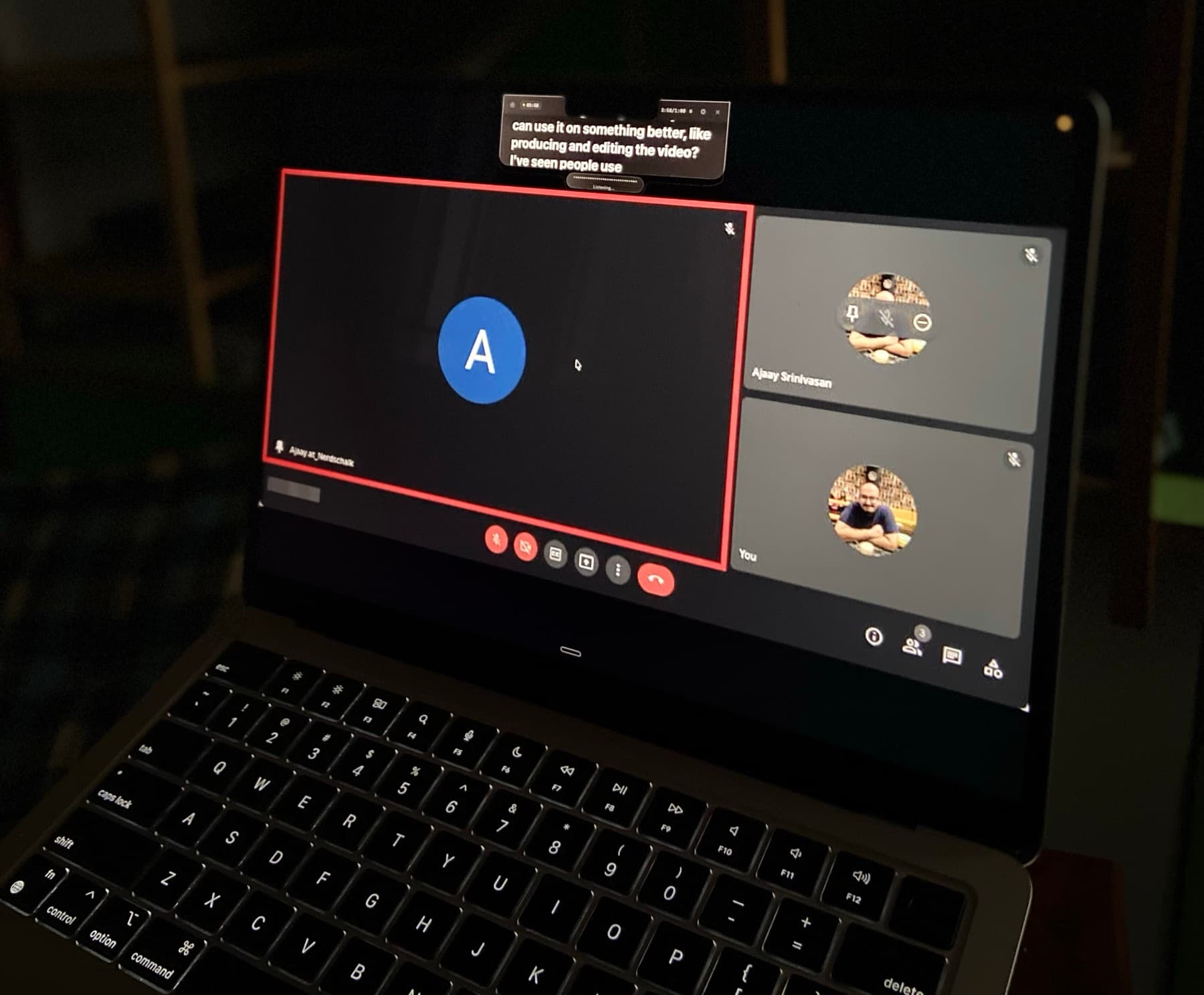
- Captions at eye level: AutoCaption shows the call's words in the notch, so you can catch a question without looking down at Meet's captions.
The free tier is enough to try it today. Three activations a day and 100-word scripts covers one real Google Meet call.
Try it on your next callWhat you do on a Meet call
Write five bullets, not a speech
Paste them into CueNotch. Short lines are easier to glance at mid-sentence.
Turn on Ghost Mode
It keeps the overlay out of what Meet presents. Ghost Mode is a Pro feature.
Join the call and press Cmd+Shift+Space
The notes appear beside the camera, in Chrome or Safari alike.
Present your screen, a window or a tab
Use Meet's share button and pick what to present. Sharing a single Chrome tab sends only that tab.
Glance at your presentation tile
Meet shows what you are presenting as a tile on your own screen. The notes should not be in it.
Talk
When someone else speaks, the notes wait for you.
Meet details worth knowing
Presenting a single Chrome tab is the tidiest way to share web content, because only that tab goes out. Ghost Mode matters when you present your entire screen or a desktop app window, which is where notes usually leak.
Before you can present your entire screen or a window, macOS asks once to allow screen recording for your browser. Grant it before the call and reopen the browser if it asks.
Meet's own captions run across the bottom of the call. AutoCaption puts the words in the notch instead, beside the camera. The App Store screenshot of AutoCaption was taken on a Meet call. Keep Meet's captions on too if other people rely on them.
Related: invisible notes on Zoom, a teleprompter for Google Slides, live captions for Mac meetings.
Your scripts and voice stay on the Mac
Voice-synced scrolling runs on the Mac and scripts are stored there. CueNotch does not send your talk track or microphone stream anywhere so that someone else can feed you lines. Ghost Mode uses the macOS capture-exclusion setting, which is why a full-screen share stays clean. Check once anyway before an important call.
Pricing, U.S. App Store
One time. Every future version included.
Per week, cancel anytime.
Full Pro. Does not auto-renew.
3 activations a day, scripts up to 100 words.
Local App Store pricing may vary. Requires macOS 14 or later.
Questions
Can people on the Meet call see my notes?
Not with Ghost Mode on. The overlay is excluded from macOS screen capture, so presenting your screen does not include it. You still see it on your display, and Meet's presentation tile lets you check.
Does it work in Safari as well as Chrome?
Yes. CueNotch is a Mac app, not a browser extension, so it works the same whichever browser runs Meet.
Can I see live captions of the call next to the camera?
Yes, with AutoCaption. It shows what the others are saying in the notch. Meet's own captions still work for everyone else.
Look at the camera on Meet. Read every word.
Meet puts everything below the camera. CueNotch puts your notes, and if you want them the captions, right beside it.
Get CueNotch: $29.99 lifetime- Free: 3 activations a day, 100-word scripts
- Ghost Mode on Google Meet screen share
- macOS 14+