Live Captions for Meetings on Mac with AutoCaption
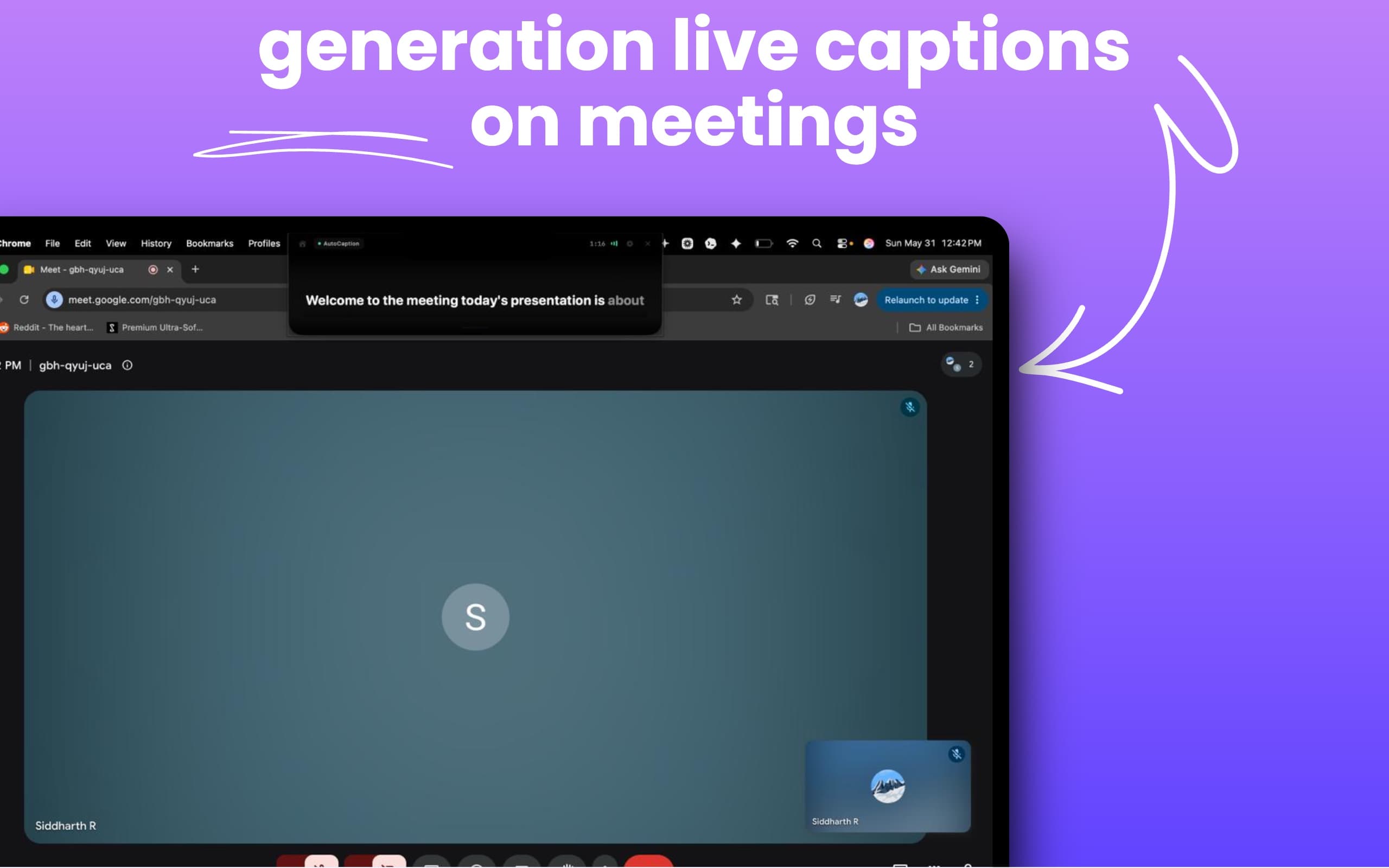
Live captions help accessibility, and they also help presenters follow fast meetings, recover missed words, and stay composed while speaking. CueNotch AutoCaption brings that workflow into the same app as your notch teleprompter.
Short Answer
CueNotch AutoCaption adds live captions to a Mac teleprompter workflow. It is useful when you need to follow what people are saying in a meeting while keeping your own script near the camera and private with Ghost Mode.
Why Meeting Captions Belong Next to a Teleprompter
Presenters often need two kinds of text: the script they plan to say and the words other people are saying. CueNotch focuses on both sides of the call. The notch teleprompter keeps your script near the camera, while AutoCaption helps you follow live speech during meetings.
Use Cases for AutoCaption
- Google Meet, Zoom, and remote calls where audio quality is inconsistent.
- Interviews where you need to catch the exact question before answering.
- Presentations where you want captions while keeping notes near the camera.
- Classes, webinars, and internal meetings with fast speakers or accents.
- Sales calls where missing one objection can change the whole conversation.
Step-by-Step Workflow
- Open CueNotch before your meeting.
- Choose the script or talking points you want near the camera.
- Start AutoCaption when you need live meeting captions.
- Use the notch teleprompter for your planned message while captions help you follow the room.
- If you share your screen, keep Ghost Mode on so private presenter aids stay hidden.
How AutoCaption Compares to Built-In Meeting Captions
Built-in meeting captions are helpful, but they are usually separate from your notes and script. CueNotch keeps captions close to the speaking workflow: your script, voice-synced teleprompter, rehearsal tools, and screen-share privacy all live in one Mac-native app.
AutoCaption is not meant to replace every accessibility feature in a meeting platform. It is designed for presenters who need a private, camera-friendly workspace while speaking on Mac.
Related CueNotch Guides
- How to hide a teleprompter during screen sharing
- How to get perfect eye contact on Zoom calls
- Speaker notes on Zoom, Teams and Meet without showing them
FAQ
What is CueNotch AutoCaption?
AutoCaption is CueNotch's live captions feature for meetings and presentations on Mac. It helps you follow spoken audio while CueNotch keeps your script near the camera.
Can I use it with Zoom, Google Meet, and Teams?
Yes. It is designed around common Mac meeting workflows including Zoom, Google Meet, Teams, webinars, classes, and interviews.
Does CueNotch stay hidden during screen sharing?
Ghost Mode is designed to keep the teleprompter hidden during screen sharing, so your audience sees your screen content instead of your private script.
macOS 14+ · Free 3-day trial · Built for meetings
Frequently asked questions
- What is CueNotch AutoCaption?
- CueNotch AutoCaption is a Mac meeting caption feature that helps you follow spoken audio while using CueNotch as a notch teleprompter.
- Can I use AutoCaption with Zoom, Google Meet, and Teams?
- AutoCaption is designed for common meeting workflows on Mac, including Zoom, Google Meet, Teams, webinars, interviews, and presentations.
- Does Ghost Mode hide CueNotch during screen sharing?
- CueNotch Ghost Mode is designed to keep the teleprompter hidden during screen sharing, so your script and presenter aids stay private.