What actually happens when you share PowerPoint on Zoom
Presenter View exists so you see notes, a timer and the next slide, while they see the deck. In a conference room that works, because the projector is a second display.
On Zoom from a Mac, three things collide:
- The camera is in the lid, not in the projector.
- The share is whatever Zoom is capturing: a window, a portion, or the whole desktop.
- PowerPoint for Mac still wants Presenter View full-screen.
The same collision happens on Teams and Meet; the PowerPoint speaker-notes guide covers all three ways around it.
Microsoft's own staff said it in February 2026, answering a MacBook Air user on macOS 26.2 whose Presenter View took over both screens so they could not see Zoom participants: Presenter View on Mac is designed to run full-screen. The workarounds listed were a windowed slideshow, portion-of-screen, or Mission Control. Microsoft Q&A, 21 Feb 2026
An older thread is still the honest quote: PowerPoint on Mac does not allow windowed Presenter View, so if you are presenting in a meeting you need three screens. Microsoft Q&A
You do not have three screens. You have a laptop.
The failed hacks, and why they still fail
Every university knowledge base and how-to still teaches a workaround. They are not wrong about hiding the notes pane. They are wrong about where your eyes go, and they are brittle the second the share type changes.
Mac Presenter View, full-screen
You start the slide show. Presenter View eats the display, sometimes both, if you have plugged in a monitor. Zoom participants disappear. Your notes are huge, which feels like a win until you remember you are staring at a notes pane in the middle of the screen, not the lens. VCU's knowledge base, updated 24 February 2026, still tells Mac users the single-monitor path is to share the Slide Show window, not Presenter View. VCU knowledge base That is the right warning. It does not put the talk track next to the camera.
Windowed slideshow, and the notes disappear
Slide Show, then Set Up Slide Show, then “Browsed by an individual (window).” Share that window in Zoom. The audience sees a clean deck. You lose Presenter View. The notes that lived in that pane are gone unless you parked them somewhere else, which is a second window, which is a second place to look.
Portion of screen, the green box
This is the ranking how-to: put the slideshow in a window, open notes beside it, then Zoom, Share, Advanced, Portion of Screen, and drag the green frame around only the slide. The Bricks, 12 Jul 2025
It works until it does not:
- You resize a window. The green box does not come with you.
- You advance a slide and the window jumps.
- You leave PowerPoint for a browser demo. Now you are sharing the wrong rectangle.
- Your notes sit in the leftover strip of the laptop, usually below or beside the slide, nowhere near the camera. Reading them is looking down.
Portion-of-screen hides the notes. It does not let you look at the camera while you read them.
Second monitor, and tennis-match eyes
Plug in a display. Presenter View on the laptop, slides on the monitor, share the monitor. Classic setup. On camera it reads as glance left, glance down, glance at the lens, miss the question. Your notes are on a different plane from the FaceTime camera. Dual monitors do not fix eye contact. They relocate the glance.
Apple Notes, Stickies or TextEdit on a full-desktop share
You float a notes window and share the desktop. Everyone sees the stickies. You share a single window instead, and the second you switch to a spreadsheet the share is wrong. A full share leaks. A window share is a trap for anyone who leaves the deck.
Phone under the camera, paper on the keyboard
A phone propped under the lens, or a printed run-of-show on the desk. Your eyes drop. On a head-and-shoulders crop that is all anyone sees. The phone also lights up.
Memorizing
Fine for a three-bullet standup. Not fine for a 20-minute deck with numbers you are not allowed to miss. The stress of remembering is visible, and so is the moment you go looking for the line you dropped.
If every hack either leaks the notes, takes the notes away, or pulls your eyes off the lens, stop stacking hacks.
None of the hacks solve all three at once. Notes you can read, eyes at the camera, and a share that stays clean.
Share the deck. Keep the notes. Try CueNotch free.The Mac-native fix: notes beside the camera, share stays clean
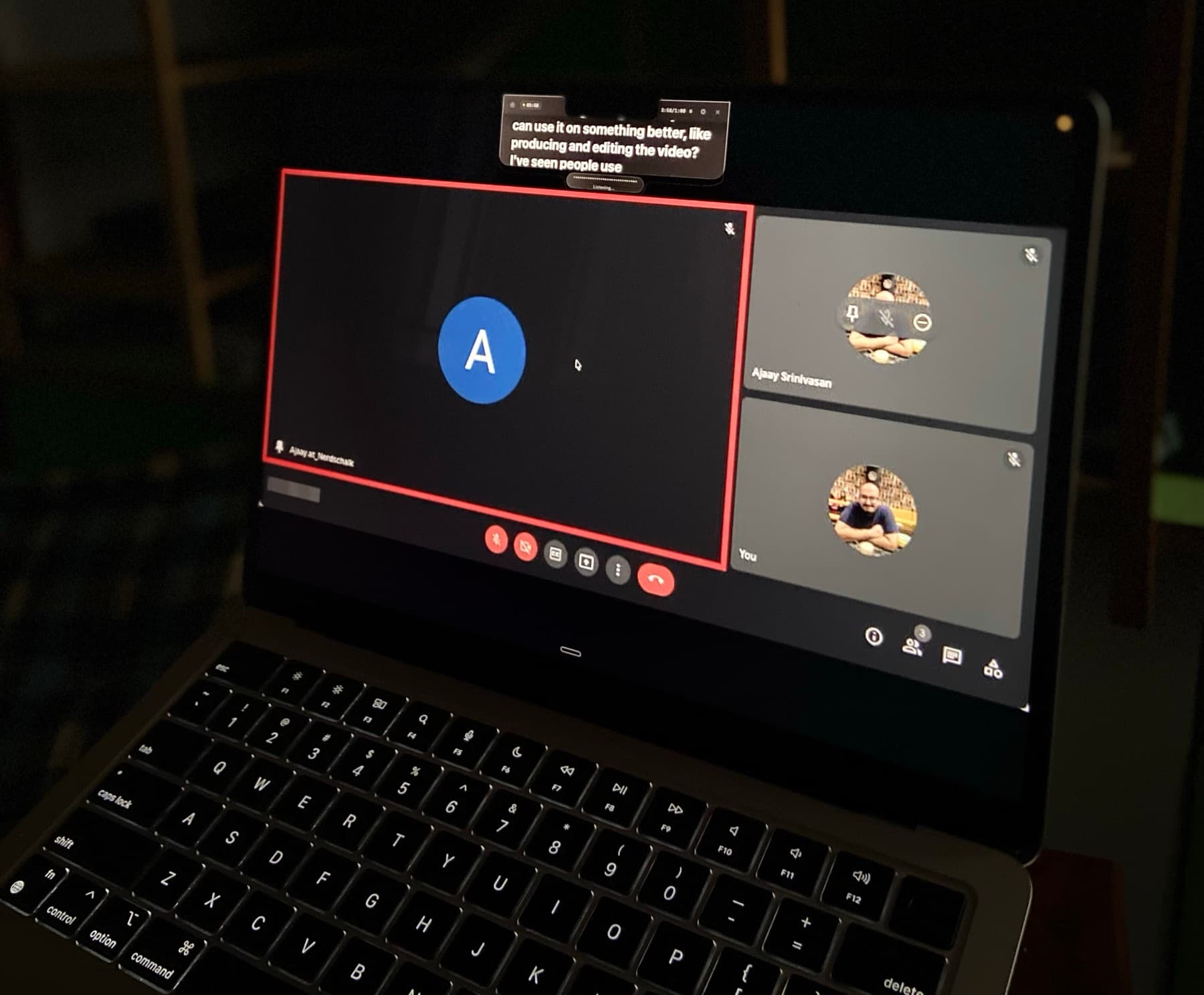
CueNotch is a native Mac app for macOS 14 and later. It puts your talk track in a compact overlay beside the camera: in the notch if you have one, top-center next to the lens if you do not.
Three things Presenter View, portion-of-screen and a second monitor never do at the same time:
- Reading is looking at the camera. The text sits next to the lens, not in a notes pane, not on the other monitor, not in a Word doc under the Zoom tiles. For the eye-contact version of this job, see how to look at the camera on Zoom while you still have notes.
- Ghost Mode keeps the share clean. The overlay is hidden from Zoom, Meet, Teams, Loom, OBS, screenshots and recordings, so you can share the PowerPoint window or the full desktop. Always do a share-preview check before a real call: Ghost Mode, step by step.
- Voice-sync waits when they talk. Scrolling is on-device. You pause for a question and the bullets wait. You do not tap a clicker while someone is speaking.
The hotkey is Cmd+Shift+Space. Paste the speaker notes or the Word script into CueNotch, turn on Ghost Mode, and share the slides as you already do. The product page for this workflow is CueNotch for Zoom.
NotesPresenter versus notes next to the camera
If you have already searched for PowerPoint notes while sharing screen on Mac, you have seen NotesPresenter. It is a notes pane tied to the deck. You still share the PowerPoint window. You still look at a side panel, which is still not the camera. And the pane is useless the moment you leave PowerPoint for questions, a live product, or a browser tab.
CueNotch is not a second Presenter View. It is the layer that sits at the lens, hides from a full-desktop share, and keeps working in any app. Share the deck. Then share the prototype. Then come back on camera for questions. Same notes, same Ghost Mode.
How to run this on the next Zoom, on one monitor
You do not need a third screen, and you do not need to win a fight with Spaces.
Download CueNotch
From the Mac App Store. It runs on macOS 14 or later.
Paste the talk track
PowerPoint notes, the Word doc, five bullets, whatever you were going to hide.
Keep the lines speakable
The audience can read the slide. Your overlay holds what you will say about it.
Enable Ghost Mode
This is what lets you share the full desktop without the overlay appearing in it.
Join Zoom and press Cmd+Shift+Space
Confirm the overlay is sitting next to the camera.
Share the Slide Show window
Or share the full desktop if you need to leave PowerPoint. Ghost Mode is why that share does not leak.
Check the share preview first
Before anyone else joins, open Zoom's share preview. If you can see the overlay, Ghost Mode is not on. If you cannot, you are clear.
Then talk. Voice-sync follows you, and when someone interrupts it waits. The free tier is enough to prove it on one call today: three activations per day and scripts up to 100 words. Pro is $29.99 lifetime in the U.S. App Store, or $7.99 per week. The 3-day Pro trial does not auto-renew. Local App Store pricing may vary.

Frequently asked questions
- Why does PowerPoint Presenter View fail on a MacBook Zoom share?
- Presenter View takes the whole display. Zoom then either shares that notes-heavy screen or you juggle a second window and lose the camera. The notes are never beside the lens, so you look down to read them.
- Do I have to share a portion of the screen to hide speaker notes?
- No. Portion-of-screen boxes break when you leave the slide show. Ghost Mode excludes CueNotch from macOS capture, so you can share the Slide Show window or the desktop and still keep the notes. Always open Zoom's share preview first.
Share the deck. Keep the notes.
Paste your speaker notes into CueNotch, turn on Ghost Mode, and present from one Mac screen without the notes going anywhere.
Try CueNotch free- macOS 14+
- Free: 3 activations a day, 100-word scripts
- $29.99 lifetime or $7.99 per week
- 3-day Pro trial does not auto-renew