The short answer
The best teleprompter apps for YouTube recording on Mac are CueNotch, which displays your script inside the MacBook notch beside the webcam for natural eye contact; Teleprompter.com for browser-based workflows; Moody and Notchie as reliable one-time-purchase desktop tools; and QPrompt, a free open-source alternative for creators who enjoy customizing settings.
The Problem with Generic Teleprompter Apps
Many teleprompter apps are just floating windows. When you use them to record a YouTube video or share your screen on a call, the app interface often shows up in the final file. You end up with a glowing box visible to your audience, which ruins the effect. You need a tool with privacy features like Ghost Mode. This ensures your script stays invisible to screen recording software while remaining visible to your eyes alone.
Fixed-speed scrolling is another common frustration. Think about your natural speaking style. You speed up during excitement and slow down for emphasis. A fixed timer leaves you scrambling to catch up or pausing to wait for the next line. Voice-synced scrolling is how you fix this. The script follows your specific speaking pace, moving only when you move. You can read more about how this improves flow in our guide to the best teleprompter for YouTube videos.
Evaluating Your Options on macOS
Selecting the right tool for your specific setup matters. Your workflow needs to be as smooth as the final video. When you look for what are the best teleprompter apps for YouTube recording on Mac, you will find several categories of software ranging from free web tools to dedicated macOS utilities.
Using CueNotch
Best for: talking-head recording on a MacBook
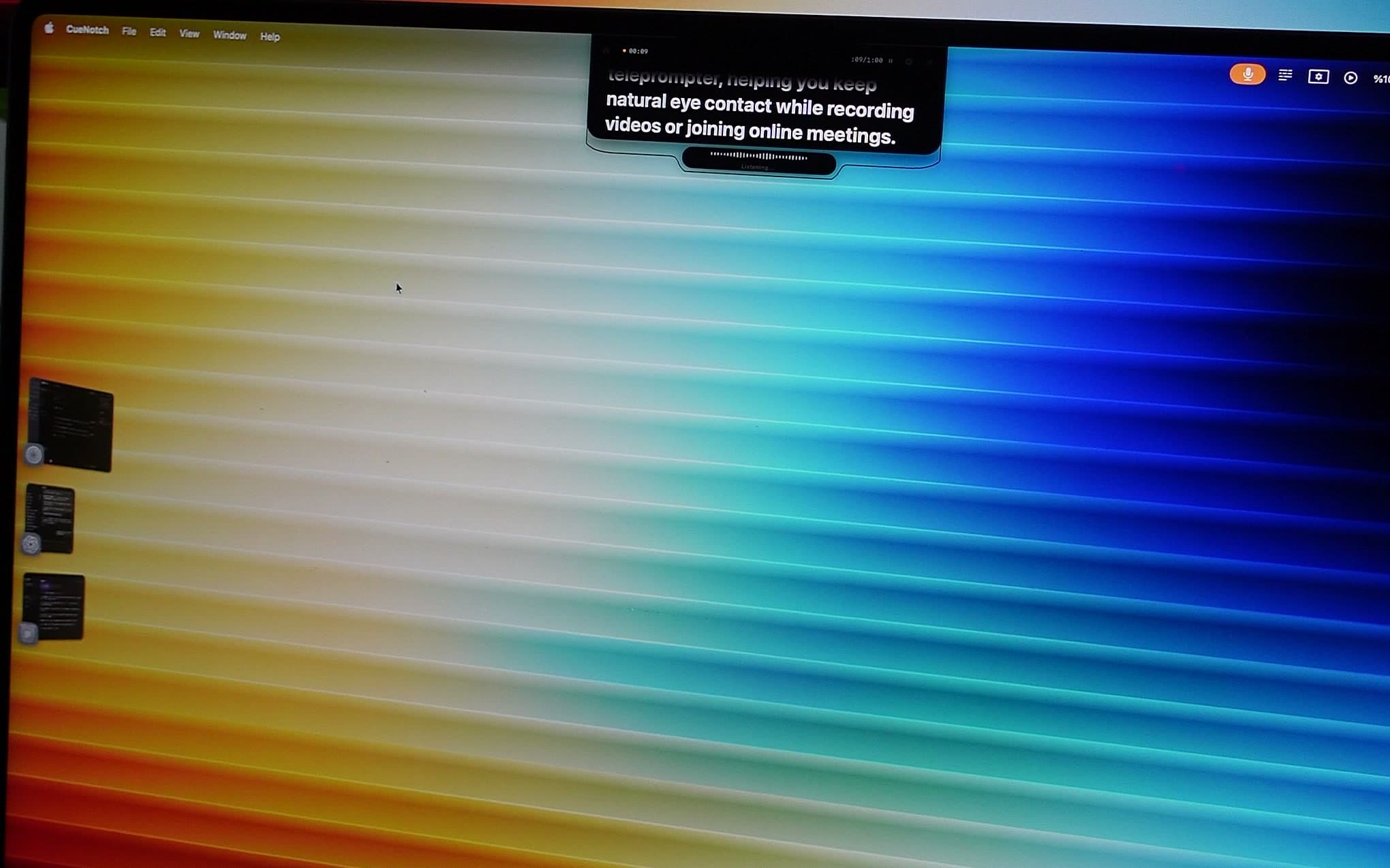
Designed specifically for the MacBook notch, this app focuses on removing every possible distraction. It sits in the menu bar, keeping the entire interface out of your way until you need it. Because it uses voice-synced scrolling, you never need a remote clicker or a keyboard shortcut to advance your text. It is a one-time purchase of $29.99 for lifetime access. It is my personal favorite because it removes the mental load of managing a separate window while trying to record.
See our breakdown of 5 Mac notch teleprompter apps →
The Web-Based Approach
Best for: cloud syncing across devices
Teleprompter.com is a common choice for those who prefer browser-based workflows. It supports 4K recording and has mirrored text. The free version often relies on watermarks, and the monthly subscription costs can grow over time. It is a viable pick if you absolutely need cloud syncing across different devices, but it lacks the deep, native integration that makes notch-based apps feel like a natural extension of your Mac. You end up with extra browser tabs cluttering your desktop.
Traditional Desktop Tools
Best for: simple, reliable reads
Moody and Notchie are well-known one-time purchase options. They provide a reliable, classic teleprompter interface for about $29.99. These tools work well for basic reads, but they often lack the advanced voice-tracking that makes speaking feel natural.
Read our Moody teleprompter review →
The Open-Source Alternative
Best for: tinkerers on any operating system
QPrompt is an open-source solution that works across different operating systems. It handles large scripts well and allows you to customize fonts and sizing. Using it feels a bit like operating a traditional studio prompter. You will need to spend time manually adjusting windows to get your script centered near the webcam, which can be tedious compared to the set-it-and-forget-it nature of menu-bar-native tools.
Writing Scripts That Sound Human
Writing for video is distinct from writing for a blog or an email. When you write a paragraph with long, complex sentences, it is difficult to read aloud without tripping over your own words. It sounds like a college lecture. Good scripts use shorter sentences and active, conversational verbs. When I write my own scripts, I read them out loud while I draft. If I run out of breath or stumble on a phrase, I delete it and rewrite it. This makes a bigger difference in your delivery than any piece of software ever will. You can store these drafts in a dedicated script library so you have them ready for every shoot.
Consider adding visual cues in your draft. If you need to gesture or pause for dramatic effect, write it down in brackets. I often put (Pause for effect) or (Lean forward) directly into the text. Seeing these notes in the teleprompter window keeps my body language as intentional as my speech. It prevents that stiff, robot-like delivery many beginners fall into. Focus on your tone, not just the words.
Do You Need a Teleprompter for Short Content?
If you are recording short, snappy clips for Instagram or TikTok, you might get away with simple bullet points on a sticky note. But for long-form YouTube content, interviews, or complex tutorials, a teleprompter becomes essential. Relying on memory often leads to long pauses, filler words like um and ah, and countless retakes. By using a tool that tracks your voice, you turn a stressful recording session into a calm, focused workflow. It allows you to deliver your hook in those vital first seven seconds with absolute clarity, ensuring your audience stays engaged rather than clicking away.
Many users ask if a teleprompter makes them seem fake. The answer depends on how you use it. If you stare unblinkingly at the text, yes, you will look stiff. If you use the prompt as a safety net and keep your delivery conversational, nobody will even know you are reading. Practice keeping your eyes slightly soft. Do not lock your gaze onto the letters. Look past the glass at the lens, trusting your peripheral vision to pick up the words. This takes practice. Start with shorter videos. Try recording a five-minute explainer using a free macOS teleprompter to gauge your comfort level.
Frequently asked questions
- Will a teleprompter overlay show up in my screen recording?
- Only if the app cannot exclude itself from capture. CueNotch's Ghost Mode marks its window as excluded from macOS screen capture, so OBS, QuickTime, and screen-sharing tools receive a clean frame while the script stays visible on your display.
- Do I need extra hardware to use a teleprompter on a MacBook?
- No. Notch-based apps like CueNotch display your script beside the built-in webcam, replacing beam-splitter glass, tablet mounts, and remote clickers with a single native Mac app.
- How much does a Mac teleprompter app cost?
- Prices range from free to subscription. CueNotch and Notchie are one-time purchases around $29.99, Moody is $39 one-time, QPrompt is free and open source, and browser tools like Teleprompter.com charge monthly subscriptions. CueNotch also offers a free tier with 3 activations per day.
Put your script where your viewers look.
CueNotch keeps your YouTube scripts beside the webcam: voice-synced, invisible to recordings, and yours for a one-time price.
Try CueNotch free- macOS 14+
- Free tier with 3 activations a day
- Pro $29.99 lifetime