The short answer
To keep natural eye contact while reading notes during customer calls on Zoom, move your script to the top center of your screen, directly under the webcam. Use a native macOS tool like CueNotch to place your text in the notch, keeping notes invisible during screen sharing via Ghost Mode.
Why reading notes breaks eye contact
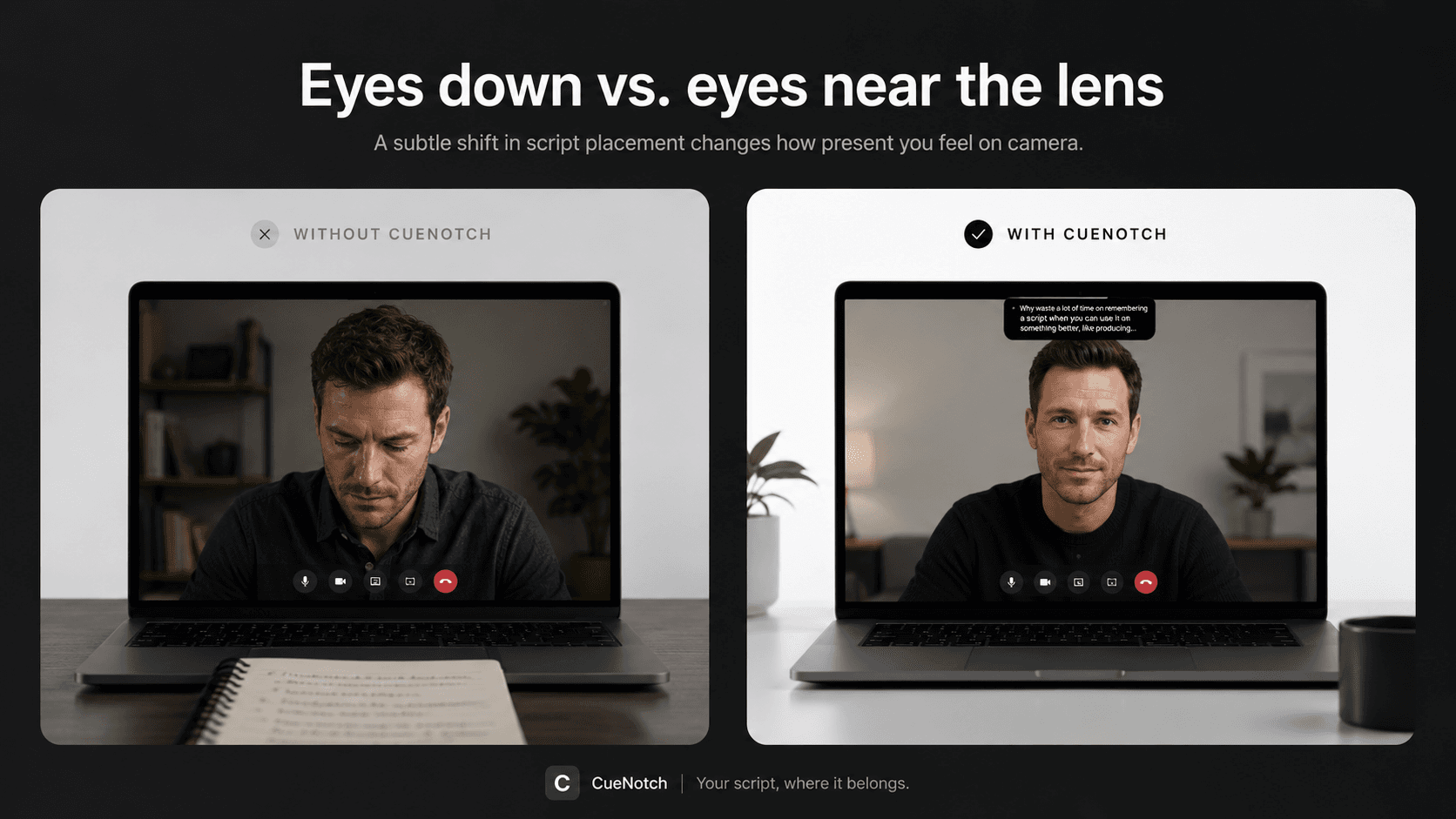
Most professionals rely on sticky notes clustered around the monitor or a browser window dragged toward the webcam. Your eyes eventually drift away from the lens to track lines of text. This movement is obvious. The person on the other end loses the sense of direct connection, which often makes you seem distracted. When you are in a high-stakes sales pitch or a delicate interview, that split second where you look away can break the rapport you have built.
Technical guidance suggests that the closer your eyes stay to the camera, the better. Simply moving a window under your webcam is usually insufficient. Your pupils still pull downward to read. To fix this, your text must occupy the same plane as the camera lens. This is exactly why we built CueNotch, a native macOS teleprompter. It uses the dead space of the MacBook notch to place your script right where your eyes already naturally rest during a call.
Why hardware is often overkill
Many guides suggest bulky beam-splitter teleprompters. These use glass mirrors to hide a camera behind a screen. While they function well, they are expensive and impractical for daily use. You need a solution that is ready the moment you open your laptop, regardless of whether you are in a corporate office, a home setup, or a busy coffee shop.
Software-based tools offer this mobility. Your script setup travels with you, remaining consistent across every location. The critical factor is choosing a tool that functions as a silent, background utility rather than a distracting window. For example, Ghost Mode is a specific feature that ensures your notes never bleed into your screen share or recorded output. It maintains your privacy while you read, as your client only ever sees the intended content. This setup allows for a clean screen that avoids common clutter.
Voice-synced scrolling vs. timers
One common error is using a fixed scroll speed for your teleprompter. You are not a robot, and your customer rarely speaks at a predictable, machine-like cadence. Fixed speeds force you to rush your delivery to catch up with the text, which sounds unnatural.
- Fixed timer: the text moves whether you do or not. You rush to catch up, or you wait for it. Either way the pace is the machine’s.
- Voice-synced: the text advances only while you speak. Pause to listen and the script sits still until you resume. The pace is yours.
We designed CueNotch to use voice-synced scrolling rather than a static timer. The text only advances as you speak. If you pause to listen to a prospect or think through a technical question, the script sits perfectly still until you resume. This creates a natural rhythm. You are not chasing a timer. The text is simply a silent prompt. We advise using short bullet points for your notes instead of dense paragraphs. Keep them under 15 words per line to allow for quick scanning without losing your place. This structure supports a conversational tone and accommodates the natural pauses that define a real human connection. Even on long calls lasting over sixty minutes, this method prevents the usual reading fatigue.
Refining your script for better flow
When preparing for a discovery session, the way you format your notes dictates your confidence. Dense walls of text force you to scan too much, which leads to losing your place. Break your content into small, logical blocks that correspond to the natural flow of your meeting. For a more detailed strategy on organizing your talking points, read our advice on how to use a teleprompter on sales calls.
If you struggle to sound conversational while reading, do a rehearsal run first and watch where your pace jumps and your pauses disappear. Once your rhythm is set, the teleprompter stops being a distraction and becomes a subtle safety net. You catch a glimpse of your next point, glance back at the lens, and speak as if you are recounting a story from memory. Having a clear structure, such as a three-part agenda, helps keep your mind organized even when you have many details to cover.
Managing privacy during screen shares
This is a legitimate fear. You initiate a screen share to show a slide deck, and your private reminders or pricing sheets are accidentally visible to the client. Most applications cannot distinguish between a deck and a notes window, which is why window-filtering technology is necessary.
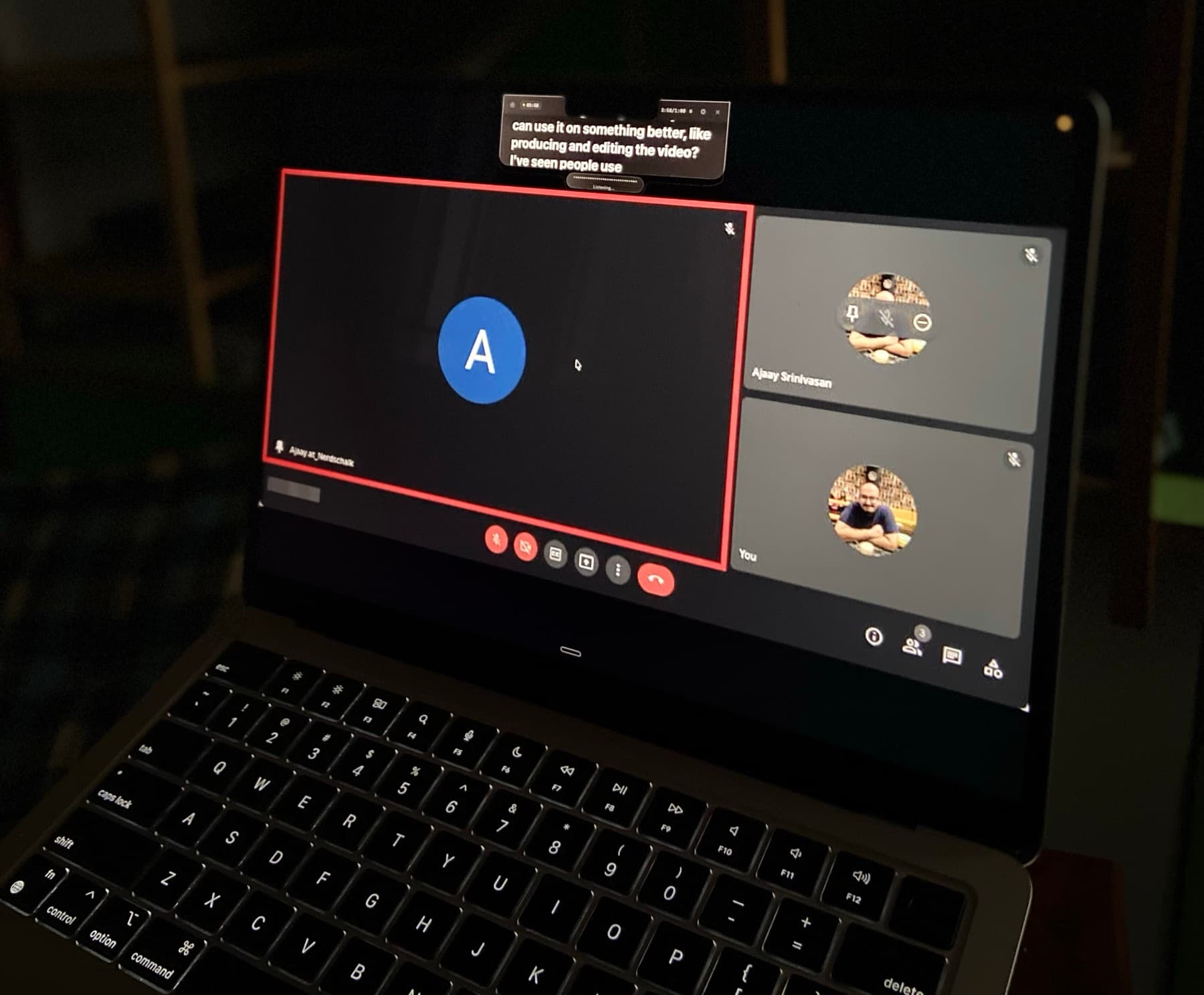
Ghost Mode in CueNotch uses the macOS setting that excludes a window from screen capture. You read your notes in the notch; the share, the recording and the preview never receive them. Check the share preview once before an important call. The guide to keeping speaker notes while screen sharing on Zoom walks through it.
Beyond the screen: body language
Staring unblinkingly at a camera for an hour creates an odd, statuesque appearance. It is better to take brief, deliberate gaze breaks every few seconds. A bit of natural eye movement helps the interaction feel authentic. A teleprompter minimizes the time you spend looking away, but it should not force you into a rigid pose.
Beyond your notes, frame your shot carefully. A centered, eye-level camera angle is consistently superior to a low-angle laptop shot on a stack of books. Once your script is in the notch, you can sit back and relax your posture. You no longer need to lean forward to read from a side window, which improves your physical comfort and helps you appear more authoritative on camera. For more on getting the right framing and eye contact, check our guide on perfect eye contact for Zoom calls. Sitting upright with your monitor at eye level makes a massive difference in your energy levels during back-to-back calls.
Try it on a low-stakes call first
Keep the notes short: bullets under fifteen words, one script per meeting, named so you can find it a minute before you join. The script library guide has a folder structure that holds up.
Then test the setup on an internal call before a customer one: check the share preview, read a few lines, and ask whether anyone noticed. Once the next point sits beside the lens, you stop rehearsing it in your head and start listening to the person in front of you.
Frequently asked questions
- How do I keep natural eye contact while reading notes during customer calls on Zoom?
- Place your script in the notch of your MacBook using a native teleprompter tool like CueNotch. This keeps your text directly aligned with the webcam, allowing you to read your notes while maintaining the appearance of making direct eye contact with the person on the other end of the call.
- Can I hide my teleprompter notes during a Zoom screen share?
- Yes. If your software uses window-filtering technology, such as the Ghost Mode in CueNotch, the application can keep your script invisible to your shared window. Your clients will only see the files you choose to share, keeping your notes private at all times.
- Does a teleprompter make me look robotic on a video call?
- It only makes you look robotic if the text scrolls at a fixed, artificial speed. Using voice-synced scrolling that follows your natural speaking pace allows you to maintain your normal, conversational rhythm, including pauses and emphasis, without being forced to match a pre-set timer.
- Is there a native teleprompter function inside the Zoom app?
- No, Zoom does not currently include a built-in teleprompter feature. You must use a third-party application designed for macOS that overlays your script onto your screen while remaining invisible to the viewers on the other end of your video meeting.
Put the script on the lens line.
CueNotch runs the script inside the MacBook notch, beside the webcam, and stays out of every screen share and recording.
Download on the Mac App Store- macOS 14+
- Free tier with 3 activations a day
- Pro $29.99 once