Finding Your Flow
A native Mac application that anchors your script to the MacBook notch is the gold standard for maintaining eye contact. By keeping your text right next to the camera, you look like you are talking to the person, not the software. When you evaluate these tools, look for three specific non-negotiables: Ghost Mode to keep notes hidden from screen recordings, voice-synced scrolling that matches your actual speaking tempo, and a low-profile interface that stays out of your peripheral vision. You can keep your speaker notes off the share to get your workspace ready for your next big call.
Why Native Notch Apps Beat Everything Else
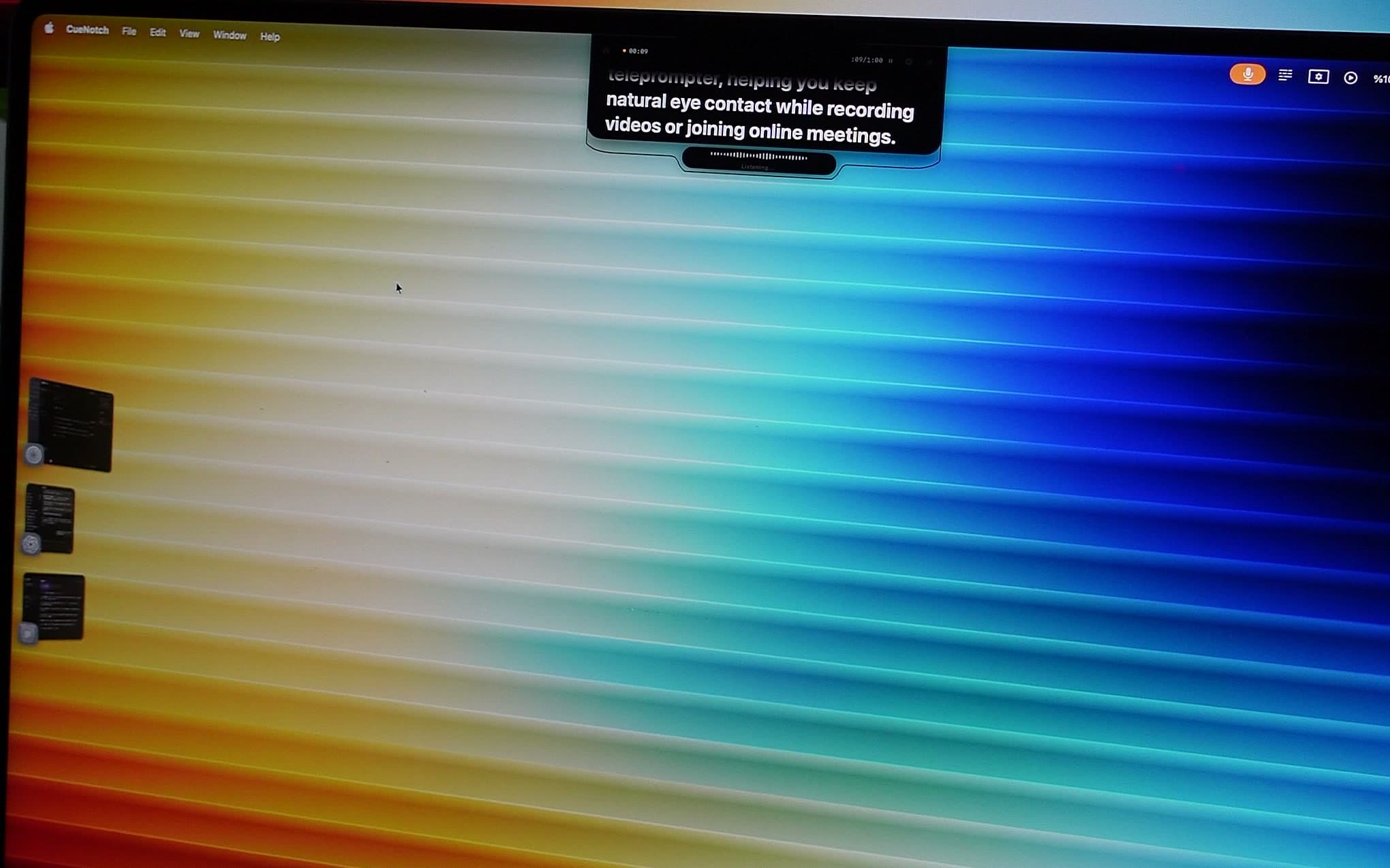
Traditional hardware teleprompters were once the only way to get a professional look, but they cost hundreds of dollars and occupied half your desk. Software that runs in the notch changes the maths. It turns the top of your screen into a clean, distraction-free reading space. Because the app sits at the very top of your display, your eye line stays locked onto the webcam lens.
I find that this shift improves my confidence significantly. When you do not have to fight the urge to look down, your delivery becomes more fluid. You can turn your own MacBook notch into a teleprompter without any extra hardware. This approach beats floating-window apps that you have to drag, resize, and hide every time you open a new tab. Native tools feel like part of macOS, which keeps your desktop uncluttered and your focus sharp.
Think about the physical setup of your workspace. Most of us work with a laptop and maybe one external monitor. A slim interface that lives in the notch saves screen real estate. I no longer have to squint at a tiny window squeezed between my deck and my video feed. The content just appears where it needs to be.
The Power of Voice-Synced Scrolling
Manual speed controls are a real weakness in budget software. Setting a fixed scroll speed works if you are a robot, but you are not. You pause to emphasise a point. You speed up during an energetic section. A fixed timer either gets ahead of your train of thought or leaves you waiting for the text to catch up, and both look awkward on camera.
CueNotch handles this with voice-synced scrolling that follows your cadence: the text advances while you speak and stops when you stop. I have used free alternatives like QPrompt and simple browser-based tools, but they generally rely on a fixed speed you set in advance. Across an hour-long presentation, managing that speed by hand becomes its own job. A tool that follows your pace lets you think about tone and body language instead of the software. If you are just getting started, a free teleprompter for Mac is a reasonable way to test the positioning first.
Privacy During Screen Sharing
Sharing your screen during a pitch often reveals your entire desktop, including messy browser tabs or private notes. This is a common trap. Your audience should never see the script you are reading from, because it breaks the illusion of natural conversation. A capable teleprompter offers Ghost Mode, which keeps your text out of screen sharing and recordings.
The mechanism matters here, so it is worth being precise about it. CueNotch does not hide the overlay by moving it off-screen or watching for meeting apps. It marks its own window as excluded from capture at the macOS window-server level, so the system never hands that window to a screen-capture client in the first place. Zoom, Teams, Google Meet, Loom, and QuickTime all receive a frame that simply does not contain your script, while you keep reading it on your own display. You can read more about how macOS screen-capture exclusion works and why it keeps notes out of the final exported file. Knowing your preparation stays private means you can keep a detailed outline open for a complex pitch without worrying about exposing it.
Comparing the Market Leaders
Choosing the right software comes down to a few distinct trade-offs. Some tools favour heavy feature sets that lead to a cluttered screen, while others lean toward simplicity at the expense of automation. All three apps below place the script near the camera, support voice-based scrolling, and advertise screen-sharing privacy, so the differences are narrower than the marketing suggests.
- Moody Teleprompter: A mature, well-known option with a one-time price. It is genuinely good at the core job and is a fair choice if you want a established Mac-native prompter with a minimal interface. Our full Moody review covers what it does well and where it differs from CueNotch.
- Notchie: Deliberately lightweight, and priced as a straightforward Mac App Store purchase. It handles notch placement and voice scrolling like the others; what it leaves out are the AI features and visual extras CueNotch adds. If simplicity is what you want, that is a design choice rather than a gap. Our three-way comparison puts them side by side.
- CueNotch: I prefer this one because it leans into the MacBook notch natively and pairs voice-synced scrolling with Ghost Mode. Pro is $7.99/week or $29.99 for lifetime access in the U.S. App Store, so you can avoid a recurring subscription entirely. It also includes script-polishing features that tighten your wording before you go live.
Prices and features change, so check the official App Store listing for each app before you buy. Beyond basic prompting, some tools add an AI rehearsal coach so you can practise before going live, which creates a loop where you draft, rehearse, then present in one workflow. It is worth checking whether your chosen tool handles a teleprompter for YouTube videos as well as live calls, since most people end up wanting both.
Refining Your Delivery
Great technology only gets you halfway there. You still need to manage your content. Avoid writing full paragraphs, because they are hard to track during a live presentation. Use bullet points and short sentences that allow for natural breathing room. Your script should act as a safety net, not a trap.
I recommend taking fifteen minutes to map out your key transitions. If you have a question you need to ask a prospect, type it out clearly. If you have a complex figure to recite, keep it in a distinct, separate block of text so you can find it at a glance. By organising your thoughts into bite-sized segments, you gain the flexibility to go off-script if the conversation takes an interesting turn, and you can jump right back to your spot without losing your rhythm. Aim to be comfortable enough with your content that the teleprompter stays a quiet assistant in the background.
Beyond structure, think about the environment you present in. Good lighting and a clean background are half the battle. If your camera is fuzzy or the room is dark, a smooth script delivery will not save the call. Spend a few minutes before the meeting checking your exposure. Lighting your face properly makes the eye contact you gain from a notch-based teleprompter far more effective. When the viewer can see your eyes clearly, and they do not see you looking away, the connection is much stronger. For more on that, see our guide to perfect eye contact on Zoom calls.
Frequently asked questions
- What is the best teleprompter for online presentations on Mac?
- A native macOS app that anchors the script beside the webcam is the most practical option for online presentations. Look for three things: screen-share privacy so notes stay out of shared screens and recordings, voice-synced scrolling that follows your speaking pace, and a low-profile interface that stays out of your peripheral vision.
- Will a teleprompter show up when I share my screen?
- It depends on the app. Browser-based and ordinary floating-window teleprompters are captured like any other window. CueNotch's Ghost Mode marks its overlay as excluded from macOS screen capture, so Zoom, Teams, Google Meet, and screen recorders never receive it.
- Do I need a hardware teleprompter rig for video calls?
- No. Beam-splitter glass and mounted tablets are built for studio production. For a Zoom, Teams, or Google Meet presentation, a software overlay positioned next to the built-in webcam puts the text closer to the lens than an external rig, with no extra hardware on the desk.
Present to the camera. Keep your notes.
The free tier gives you 3 activations a day. Use one on your next presentation and judge the eye line yourself.
Try CueNotch Free on Mac App Store- macOS 14+
- Ghost Mode for screen sharing
- $7.99/week or $29.99 lifetime access